X Icon Changer - Change Icons
- 4.3
- Rating
- 50.00M
- Installs
- Free
- Price

 Analysis by App-foxy
I spend a lot of time adjusting my phone’s home screen, and I have found that changing icons can make a bigger difference than changing a wallpaper alone. X Icon Changer - Change Icons is built for that small but surprisingly useful job. It is a free personalization app from ASTER PLAY that lets me create alternative app icons and shortcuts, without putting a watermark on the finished icon. After using it, I see it as a practical tool for people who want a more coordinated home screen without replacing their entire launcher.
The important distinction is that this is not a complete home-screen replacement. It works around the existing Android interface by creating shortcuts that open the apps I choose. That approach makes it approachable, especially if I do not want to learn a new launcher, but it also creates a few compromises that become noticeable when I customize many apps. My overall impression is positive: X Icon Changer is most useful as a focused shortcut and icon-customization tool, rather than as an all-in-one personalization system.
How the app feels in everyday use
I find the app most useful when I treat icon changes as a small home-screen project rather than a full phone makeover. Starting with just a few shortcuts lets me judge whether their appearance and behavior fit my launcher before I commit to a larger layout. That practical trial also clarifies where the app’s focused approach helps—and where broader customization tools may suit me better.
You May Also Like

 AccuWeather: Weather Radar
AccuWeather Review: A Quick, Clear Forecast for Everyday Decisions
For everyday plans, the best forecast is the one you can understand quickly. AccuWeather makes rain timing, radar, and local conditions easy to act on, with a few trade-offs.

 Hill Climb Racing
Why Hill Climb Racing Still Turns Crashes Into One More Run
A tiny car, a bumpy hill and one more upgrade: Hill Climb Racing keeps resurfacing because its simple chaos makes every near-miss feel personal.

 AliExpress - Shopping App
AliExpress Makes Global Shopping Feel Personal, but Shoppers Bear the Risk
AliExpress turns a global marketplace into a pocket-sized discovery engine. Its reach is useful, its shopping loop compelling, and its trade-offs easy to miss.

 Lords Mobile: Kingdom Wars
Lords Mobile Is a Kingdom-Building Routine, Not a Quick Match
A case-by-case verdict on the building, battles, device demands, and social commitments that make Lords Mobile rewarding for some players and exhausting for others.

 PDF Scanner app - TapScanner
TapScanner Makes Paperwork Easier to Capture, Check, and Share
TapScanner makes scanning with a phone feel less like a rescue operation and more like a dependable step in getting work done. Its capture tools are useful, though not flawless.

 Block Blast!
 Shows How Much a Puzzle Game Can Leave Out
A quiet grid game shows why puzzle players increasingly value instant clarity, repeatable skill and low-pressure play—and where the genre still needs to catch up.
More From Our News Desk
View All News


A simple way to change the visual identity of a phone
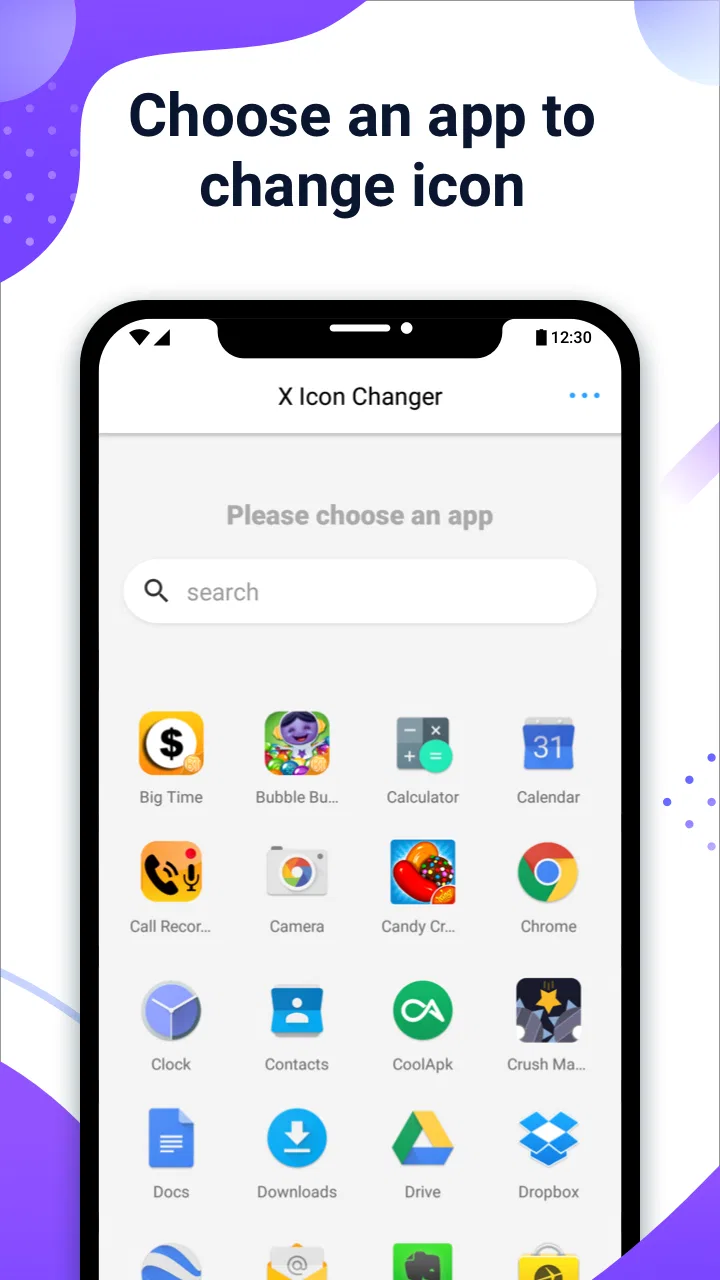
The first thing I like about the app is its clear purpose. I can select an app, choose an image for its replacement icon, and add the resulting shortcut to the home screen. That is enough to create a themed row of apps, match icons to a wallpaper, or make a work-focused page look calmer. The process is much less disruptive than changing launchers, because I can keep the rest of my current layout and only alter the apps that matter to me.
This makes it especially convenient for small projects. For example, I might want a monochrome-looking dock while leaving the rest of the phone untouched. I do not need to redesign every screen. I can change only the frequently used shortcuts, then stop when the result feels right. That selective approach is one of the app’s strongest practical qualities.
The app belongs to the personalization category, but its usefulness is also tied to organization. I can make a visual distinction between personal and work shortcuts, create a more obvious icon for an app I often overlook, or use a custom image for a shortcut that otherwise blends into a crowded screen. These are modest changes, yet they can make a phone feel more intentional.
What the shortcut method changes
There is a trade-off behind the convenience. The replacement is a shortcut rather than a direct system-level icon swap. In practice, that means the original app can still exist elsewhere on the phone, while the new visual version sits on the home screen. If I am building a carefully ordered layout, I need to remove or move the old icon myself so that I do not end up with duplicates.
I also treat the shortcut as a visual layer, not as a complete replacement for the original app identity. Notifications, app search, settings pages, and other parts of Android may still show the original icon. That is not a failure of this particular tool; it is a consequence of working through shortcuts. Anyone expecting every appearance of an app to change should use a launcher or icon-pack system designed for deeper integration instead.
For a few selected icons, this limitation barely bothers me. For a full theme, it becomes part of the planning. I recommend starting with the home screen rather than trying to redesign the whole device at once. That lets me see whether the shortcut behavior and visual consistency are worth the extra setup before committing to a larger makeover.
Useful workflows beyond basic decoration
One of my favorite uses is creating a temporary visual layout for a specific period. If I am preparing for travel, I can place the apps I expect to use together and give them a consistent look. After the trip, I can remove those shortcuts without having changed the underlying applications. The same idea works for a study period, a new job, or a short-term project.
Another useful workflow is accessibility through visual emphasis. I can choose a large, high-contrast image for an app that is easy to miss among similar icons. This does not replace Android’s accessibility settings, but it can make a frequently needed shortcut easier to identify at a glance. I would be careful with overly detailed images, because a design that looks attractive full-size may become difficult to recognize when reduced to icon size.
I also find it helpful for separating contexts without installing a second launcher. A home screen can have one visual style for everyday use and another page for work-related shortcuts. The app does not automatically create a complete profile system for me, so the organization still requires manual decisions, but the custom shortcuts provide a simple visual signal about which page I am using.
Choosing images that actually work as icons
The quality of the result depends heavily on the source image. A busy photograph usually becomes a muddy icon, while a simple shape or bold symbol remains recognizable. I get better results when the main subject is centered and has strong contrast against its background. Before adding a large set of shortcuts, I test two or three images on the actual home screen, because the small display size can change my impression completely.
Consistency matters more than individual beauty. A collection of unrelated images can make the screen feel less organized than the original icons. I prefer choosing one visual rule, such as similar colors, matching backgrounds, or the same illustration style. That is a more realistic way to get a polished result than searching for a perfect image for every app.
The watermark-free result is important here. A visible mark would undermine the purpose of a carefully designed home screen, especially when the icon is based on a personal image or a clean graphic. In my testing mindset, the absence of that distraction is one of the clearest reasons to consider this app instead of a basic image-to-shortcut utility.
Cost, free access, and paid value
The app is free to install and use, which makes experimenting low-risk. I can try a small theme before deciding whether the workflow suits me. The listed in-app purchases are $1.99 per item, so the paid side is based on individual purchases rather than a single price I should assume covers every possible option.
That distinction matters when judging value. The free access is enough to evaluate the core idea and create a personalized home screen without paying upfront. If I only need occasional icon changes, that may be all the value I need. Someone planning a large, highly detailed theme should pay attention to which parts of the experience require a purchase before investing time in preparing many images.
I would not describe the paid items as automatically necessary. The sensible approach is to use the free experience first, decide whether the shortcut-based design fits my phone, and then consider a purchase only when it solves a specific need. Since the price is attached to each item, the value depends on how often I customize and how much I care about the additional paid option involved. Free access makes the app easy to test, while paid value should be judged one purchase at a time.
Where the experience can become tedious
Changing one icon is quick enough, but a complete theme is a different commitment. Repeating the selection and shortcut process across a large home screen can feel mechanical. I would not choose this app if my main goal were to apply a ready-made icon pack to every compatible app instantly. A launcher with built-in theme support is usually better for that kind of broad change.
There is also a maintenance cost. If I later rearrange my home screen, replace an app, or change the theme, I may need to clean up old shortcuts manually. The original application remains important, so I have to remember which item is the real app and which is the customized entry point. This is manageable with a small layout, but it can become confusing if I create several versions of the same shortcut.
Another consideration is visual consistency with the rest of Android. The custom icon may look perfect on the home screen, but other system surfaces can continue using the standard app icon. For me, that is acceptable when the goal is a personalized home page. It is less suitable if I want a uniform appearance throughout the entire operating system.
Compatibility and expectations
The app supports Android devices running version 5.0 or later, which covers a broad range of phones. The current version is 4.5.2. I would still judge the experience on the specific launcher and Android setup I use, because shortcut presentation can vary between devices. Some phones make shortcuts blend naturally into the home screen, while others may show extra visual details or handle them slightly differently.
That is why I recommend a small trial before redesigning every page. I create one or two shortcuts, check how they appear, open them several times, and confirm that the layout feels natural. This also answers the practical question of whether the phone’s launcher treats the new entries in a way I like. A short test is more useful than assuming every Android interface will behave identically.
The Everyone content rating also makes the app approachable for a broad audience. In practical terms, that suits a tool intended for ordinary home-screen customization rather than a niche enthusiast audience. Still, ease of access should not be confused with unlimited automation. The app simplifies icon creation, but it does not remove the design and cleanup decisions that come with manual personalization.
How it compares with launchers and icon packs
Compared with a custom launcher, this app is less invasive. I can keep the gestures, app drawer, and layout behavior I already know while changing selected icons. That is a major advantage for someone who likes the current launcher but dislikes its visual limitations. The downside is that I do not get the deeper system-wide coordination, grid controls, or automatic theme application that a dedicated launcher may provide.
Compared with a conventional icon pack, the appeal is flexibility. An icon pack normally gives me a coordinated collection created by someone else. That is convenient when I want a finished style, but it may not include every app or may not match a very personal theme. This app is better when I want to use my own images or make a few unusual substitutions. The cost is more manual work and less uniform integration.
Compared with leaving the default icons alone, the decision is purely about personal value. There is no functional need to change icons for most people. I use the app because the home screen is something I see constantly, and a calmer or more recognizable arrangement can improve how the phone feels. If appearance does not matter to me, the setup time will probably not be worthwhile.
Who will get the most from it
I think the best audience is someone who wants visible customization without replacing the phone’s existing interface. It is also a good fit for people who want to use personal artwork, photographs, symbols, or a very specific color scheme instead of settling for a standard icon pack. The free entry point makes it easy to explore that idea before spending anything.
It can also suit families or shared-device situations where a visual layout needs to be easy to recognize. A distinctive image for a frequently used app may be more memorable than a standard logo, particularly on a busy screen. I would keep the design simple and avoid relying on tiny text inside the image, because text often becomes unreadable at shortcut size.
I would skip it if I want automatic bulk theming, deep launcher controls, or a perfectly consistent icon appearance in every Android menu. In those cases, a launcher with integrated theme support is likely the better choice. I would also skip it if I dislike maintaining shortcuts or if I rarely look at my home screen. The app’s benefit is visual and organizational, so it cannot justify much effort for someone who does not care about those areas.
My final recommendation
After weighing the free access, the per-item in-app purchase structure, and the manual nature of the workflow, I see X Icon Changer - Change Icons as a worthwhile tool for selective customization. It does one job clearly: it helps me create personalized home-screen shortcuts without a watermark. That is enough to make it useful, especially when I want a few distinctive icons rather than a complete launcher overhaul.
My advice is to begin with a small visual experiment. Pick a handful of frequently used apps, use images with simple shapes and strong contrast, and check how the shortcuts behave on the phone’s launcher. If the result feels natural, expand the theme gradually. If the duplicate icons or manual cleanup already annoy me, I should stop there and choose a launcher or icon-pack approach instead.
The app has earned a strong audience, with an average rating of 4.3 from around 649 thousand ratings and over 10 million installs. Those figures suggest that the basic idea has broad appeal, while my own judgment is more conditional: it is a good free starting point for personal icon design, but not a replacement for a full theming system. For a careful, selective makeover, I would recommend trying it. For automatic, system-wide customization, I would look elsewhere.
FAQs for X Icon Changer - Change Icons
01What is X Icon Changer and how does it work?
X Icon Changer is an app that allows you to customize the icons on your smartphone's home screen. It works by creating shortcut icons with personalized images, enabling you to replace standard app icons with ones that better suit your style. Simply select an app, choose a new icon image, and apply the changes.
02Is X Icon Changer free to use, or are there in-app purchases?
X Icon Changer offers a free version with basic features, but it may include ads. For users seeking an ad-free experience or additional customization options, there are in-app purchases available. These purchases can enhance the app's functionality, providing more icon styles and exclusive features.
03Does X Icon Changer work on all Android and iOS devices?
X Icon Changer is compatible with most Android devices. However, its functionality on iOS is limited due to system restrictions. iOS users can still create custom icons, but the process involves creating shortcuts rather than replacing the actual app icons, which can be less seamless than on Android.
04Will using X Icon Changer affect my phone's performance or battery life?
Using X Icon Changer typically has minimal impact on your phone's performance or battery life. The app works by generating shortcut icons, which do not consume significant resources. However, using high-resolution images or excessive numbers of icons might slightly affect performance, depending on your device’s capabilities.
05Are there any privacy concerns with using X Icon Changer?
X Icon Changer requires certain permissions to function, such as access to your photos for customizing icons. The app should not access or store your personal data without consent. Always review the app's privacy policy and permissions to ensure it aligns with your privacy preferences before installation.
Pros
- Easy to use interface for quick icon changes.
- Wide variety of icon styles and designs.
- No root access required for operation.
- Supports custom photo icons for personalization.
- Regular updates with new themes and icons.
Cons
- May show ads that interrupt user experience.
- Some features require in-app purchases.
- Limited free icons available for download.
- Occasional bugs when applying new icons.
- Not all launchers are fully supported.

X Icon Changer - Change Icons
Gallery